Updated November 27, 2026 · by Ivan Ivanov
Some links on this page are affiliate links. Facts come from Shopify’s help pages and each app’s own docs.
Quick answer
Compare-at price is Shopify’s “original price” field. Set it higher than the Price and your theme shows it crossed out next to the sale price; equal, lower or empty means no strikethrough.
- To remove it, clear the field: 0.00 is not the same as empty.
- Bulk options: Shopify’s bulk editor, a product CSV, or an app.
- In Shopify Markets, fixed market prices have their own compare-at.
- Checkout shows the sale price only, not compare-at.
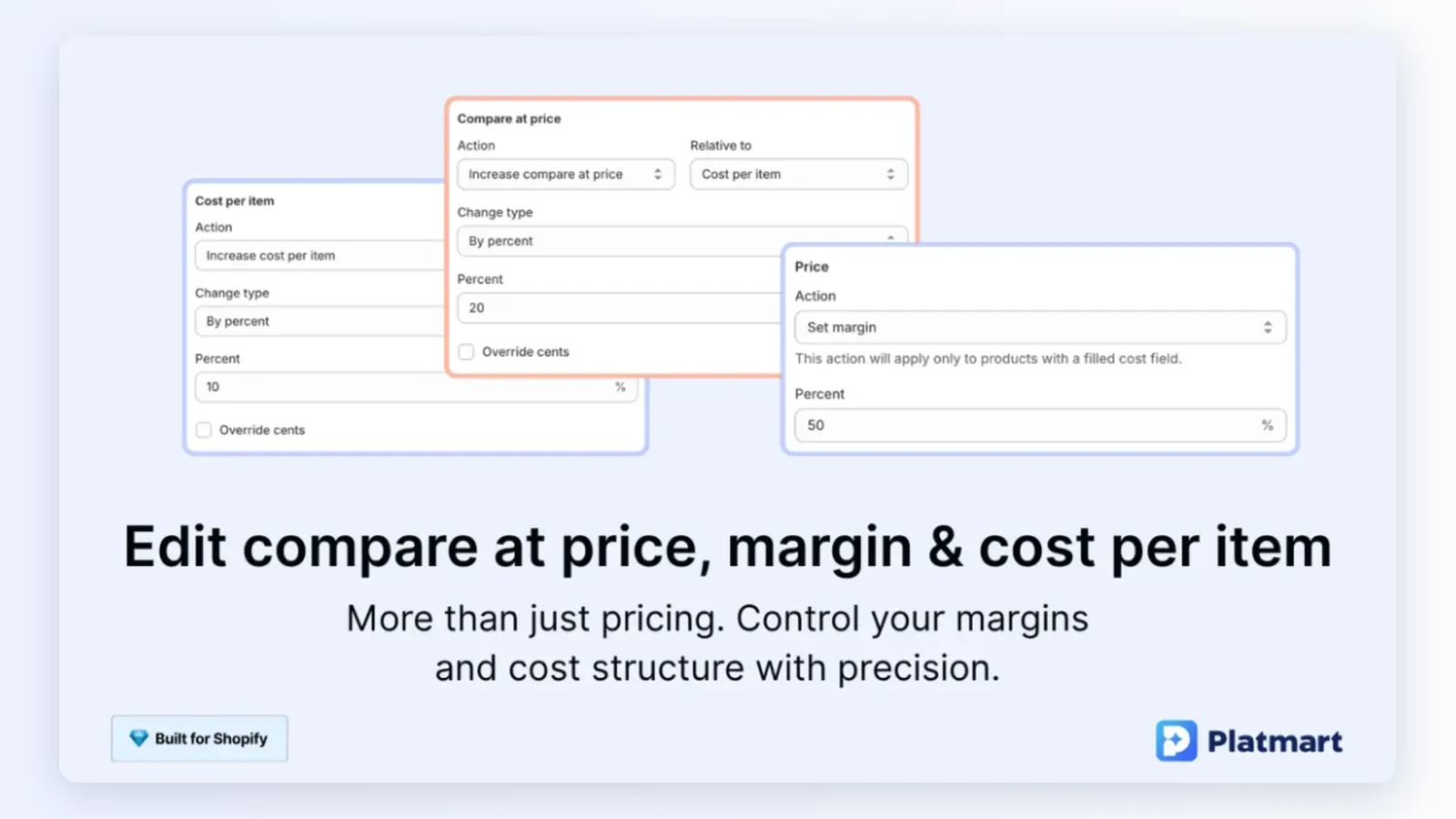
Top pick for price-only jobs: Platmart Bulk Price Editor (scheduled sales that restore prices, compare-at, Markets, rollback; free plan, paid from $14.99/mo).
For a handful of products: Shopify’s product page fields are enough.
The built-in Shopify way, in short
In Shopify, you type the original price into Compare-at price and the lower price into Price; a sale shows only when compare-at is higher.
One product.
- In your Shopify admin, go to Products and open the product.
- In the pricing section, enter the original price in Compare-at price and the lower price in Price. Repeat on each variant you want discounted.
- Click Save. To remove compare-at later, clear the field.
Many products. Select products in the product list and open the shopify bulk editor. Add the Price and Compare-at price columns from the Columns menu, edit the cells (or drag the fill handle to copy one value) and click Save. Shopify doesn’t document formulas there, so “compare-at = current price” means typing each value. A product CSV works too: copy the price column into compare-at in a spreadsheet and import with overwrite (see shopify bulk edit variants).
Sources: Shopify sale pricing, bulk editing.
The faster way: a bulk price app
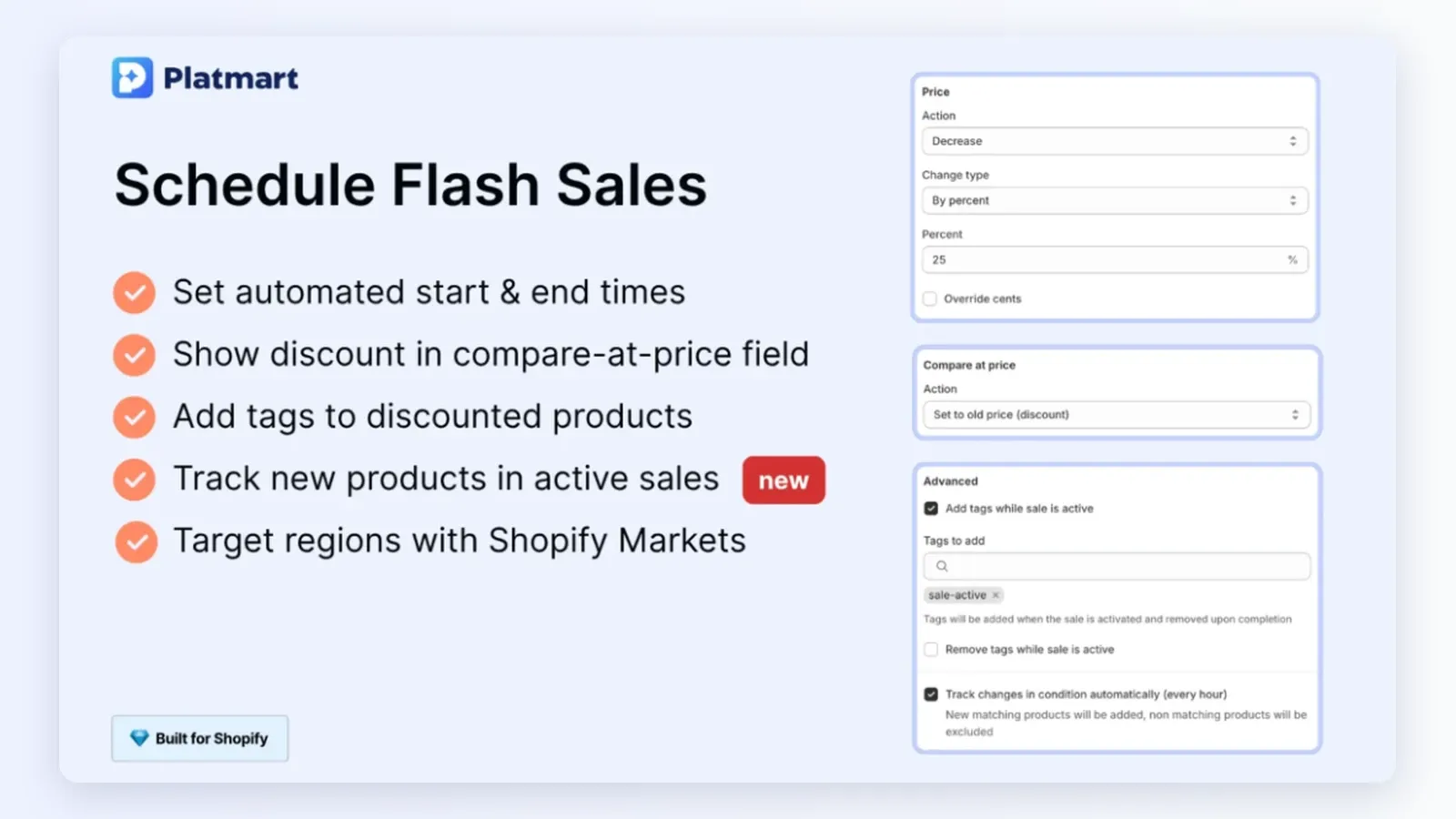
A bulk price app copies each product’s current price into compare-at while it lowers the price, so the strikethrough appears without typing a single value, and a sale app puts both back when the sale ends. Generic steps:
- Create a sale (or a task, for a permanent change).
- Set the price action, such as decrease by 25%.
- Set the compare-at action to “old price” / “current price”.
- Choose products, collections, tags or the whole store, and exclusions.
- Preview, set dates if it’s a sale, and start.
In Platmart Bulk Price Editor, for example, the steps per its docs and help center are: