Updated November 27, 2026 · by Ivan Ivanov
Some links on this page are affiliate links. App facts are checked against each vendor’s own listing and docs.
Quick answer
Shopify’s help pages for the bulk editor and CSV import don’t mention an undo, so the built-in safety net is a product CSV exported before the edit: re-import it with overwrite to put old prices back. Apps with rollback keep that backup for you.
- Re-importing a CSV changes only the columns in the file; blank cells overwrite values with blanks.
- App history windows differ: 30 to 180 days by plan (SA, Hextom, Ablestar), or any time while installed (Platmart; Bulk Price Editor Pro says “anytime”).
- Sale apps restore recorded prices when a sale ends, overwriting manual edits made during it.
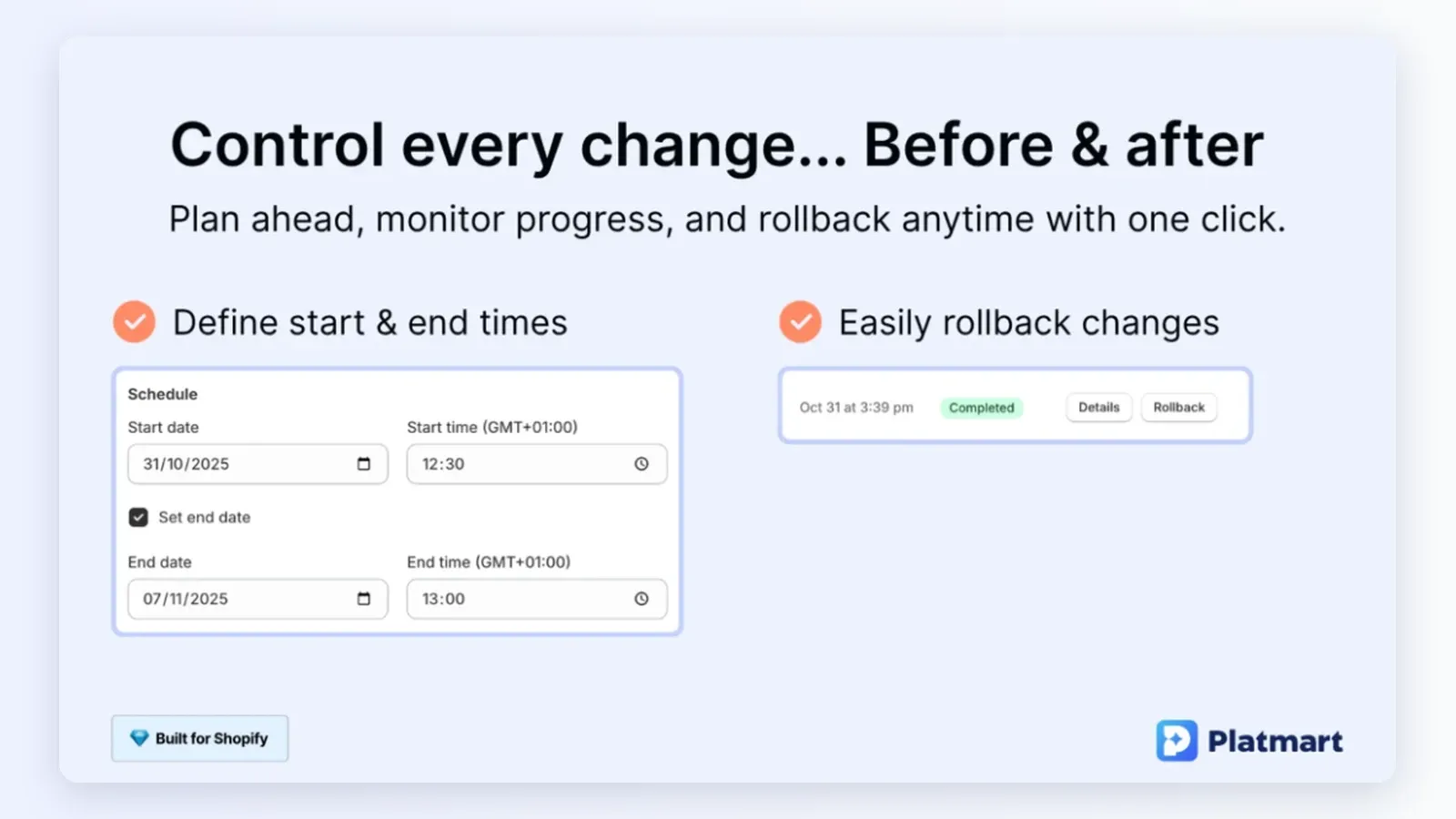
Top pick for undoing price changes: Platmart Bulk Price Editor (Rollback restores price, compare-at and cost months later while installed, with a searchable change log; free plan, paid from $14.99/mo, as of Nov 2026).
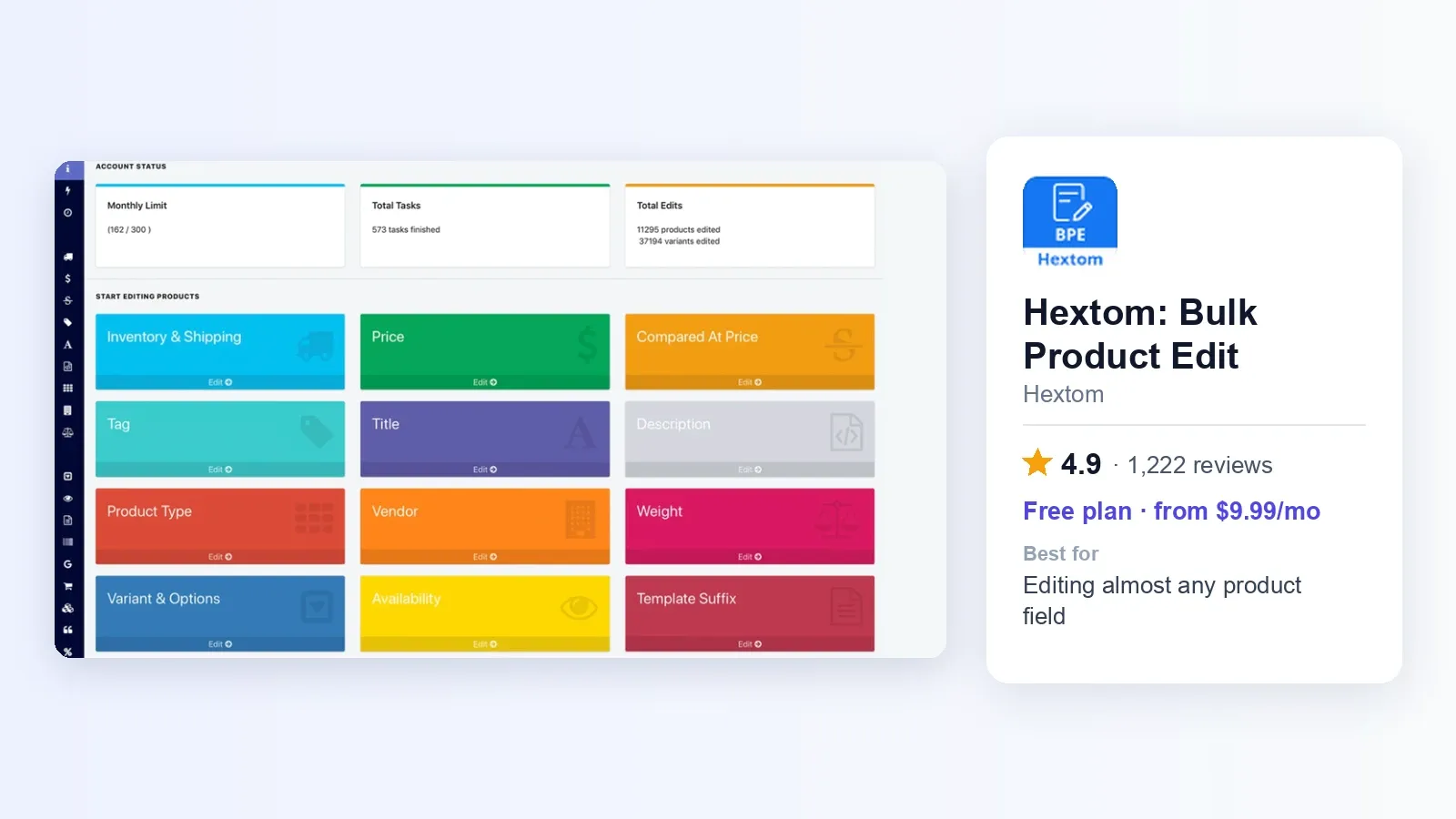
If you need to undo edits to titles, tags or other non-price fields, a general editor with edit history, such as Hextom or Ablestar, fits better.
Does Shopify have an undo for bulk edits?
Not that its help pages mention: the bulk editor and CSV import pages describe saving and importing, with no undo or revert.
In the Shopify bulk editor, changes are written when you click Save. A CSV import with overwrite replaces values for matching products. Either way, the old prices are gone unless you saved them somewhere. Sources: Shopify bulk editing, CSV import.
The built-in safety net: export before you edit
A product CSV exported right before a bulk edit is your manual undo button.
- Before editing, go to Products and export the products you’re about to change. Keep that file untouched.
- Make your bulk edit.
- To undo, import the untouched file and choose the overwrite option, which matches products by handle.
Omitted columns keep their current values, but blank cells overwrite values with blanks. The re-import also reverts any later edits to the same columns, so do it soon after the mistake.
The faster way: a bulk price app
A bulk app with rollback keeps a backup of every value it changed, so undoing is one button instead of a file import.
The generic flow: open the finished task or job in the app’s history, check what it changed, click undo or revert. In Platmart Bulk Price Editor, for example, per its rollback docs:
- Open the task and check Details: the change log lists each variant’s old and new price, compare-at price and cost, and you can search it.
- Click Rollback.
- Price, compare-at and cost per item return to their values before the task.
For a task still running, Cancel rolls back what was already applied. After uninstalling, you have 90 days to reinstall and roll back.